How to Use Serato STEMS on XDJ-AZ & RX3 + USB Workflow for CDJs (Ableton Guide)
Music Gear Mondays
STEMS have completely changed the way DJs can perform—giving you the ability to isolate vocals, drums, bass, and melodies in real time.
In this episode of Music Gear Mondays, we’re breaking down how to use STEMS with the AlphaTheta XDJ-AZ and Pioneer DJ XDJ-RX3 using Serato DJ Pro, plus a bonus workflow for creating your own stemmed tracks in Ableton and exporting them to USB for CDJ use.
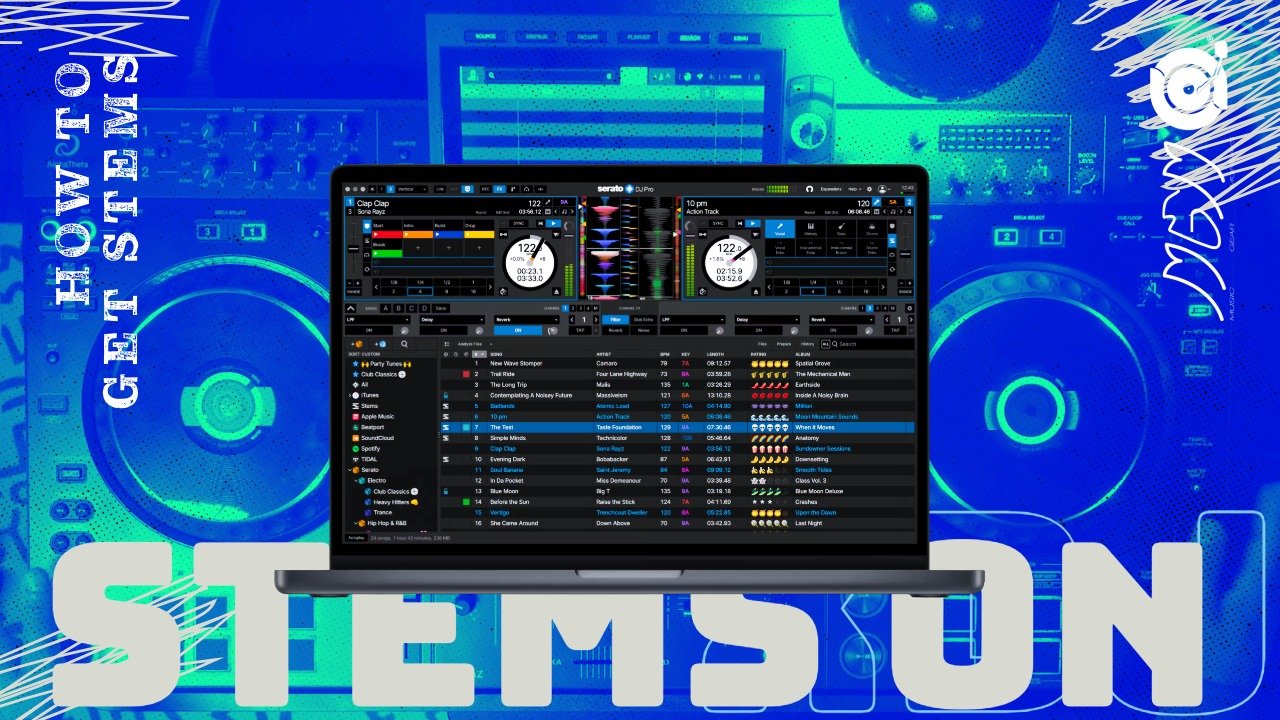
Using STEMS on XDJ-AZ & XDJ-RX3 (Serato DJ Pro)
Both the AlphaTheta XDJ-AZ and Pioneer DJ XDJ-RX3 can access STEMS when connected to Serato DJ Pro.
Quick Activation:
Press SHIFT + BEAT LOOP
This toggles STEMS mode
From there you can:
Isolate vocals
Remove drums
Create live mashups
MIDI Mapping STEMS (RX3 Only)
If you're using the RX3, you can take things a step further by MIDI mapping STEM controls directly inside Serato.
This allows you to:
Map STEMS to performance pads
Replace unused pad modes
Get faster, more hands-on control
Note: The XDJ-AZ does not support the same MIDI mapping flexibility in Serato.
Serato Reference Guides
Here are the exact resources from Serato:
https://support.serato.com/hc/en-us/articles/11432163206415-AlphaTheta-XDJ-AZ-Quick-Start-Guide
https://support.serato.com/hc/en-us/articles/5700970589583-Controlling-Stems-with-your-DJ-hardware
MIDI Mapping Tutorial
Performance Ideas Using STEMS
Blend vocals over instrumentals
Remove drums for smooth transitions
Extend intros and breakdowns
Create live mashups
This workflow is especially effective for House, Funk, Amapiano, and Hip-Hop sets.
Creating Your Own STEMS in Ableton (For CDJs)
Using Ableton Live, you can prepare your own stem-style DJ edits.
Workflow:
Import your track into Ableton
Split into:
Drums
Bass
Melody
Vocals
Export:
Instrumental
Acapella
Drum-only versions
Ableton STEMS Tutorial
Rekordbox + USB Export Workflow
Import into Rekordbox
Analyze tracks
Set cue points
Build your playlist
Important: Make sure to render your playlist before exporting to USB so everything is properly analyzed.
Final Step
Export to USB
Plug into CDJs
Mix your custom stem versions live
Powered by Crate Connect
As a DJ/Producer, staying up on new music is key, and Crate Connect is a major part of my workflow.
Discover DJ-ready tracks, edits, and weekly updated music pools.
Recommended Gear (Amazon Store)
My curated list of USB drives, headphones, DJ controllers, and studio gear.